Optimize Work & Save Time with Projects
Intermediate · 15m
← Apply
1/22
Nudgie
— your AI coach
Active
AI
Preparing your session…
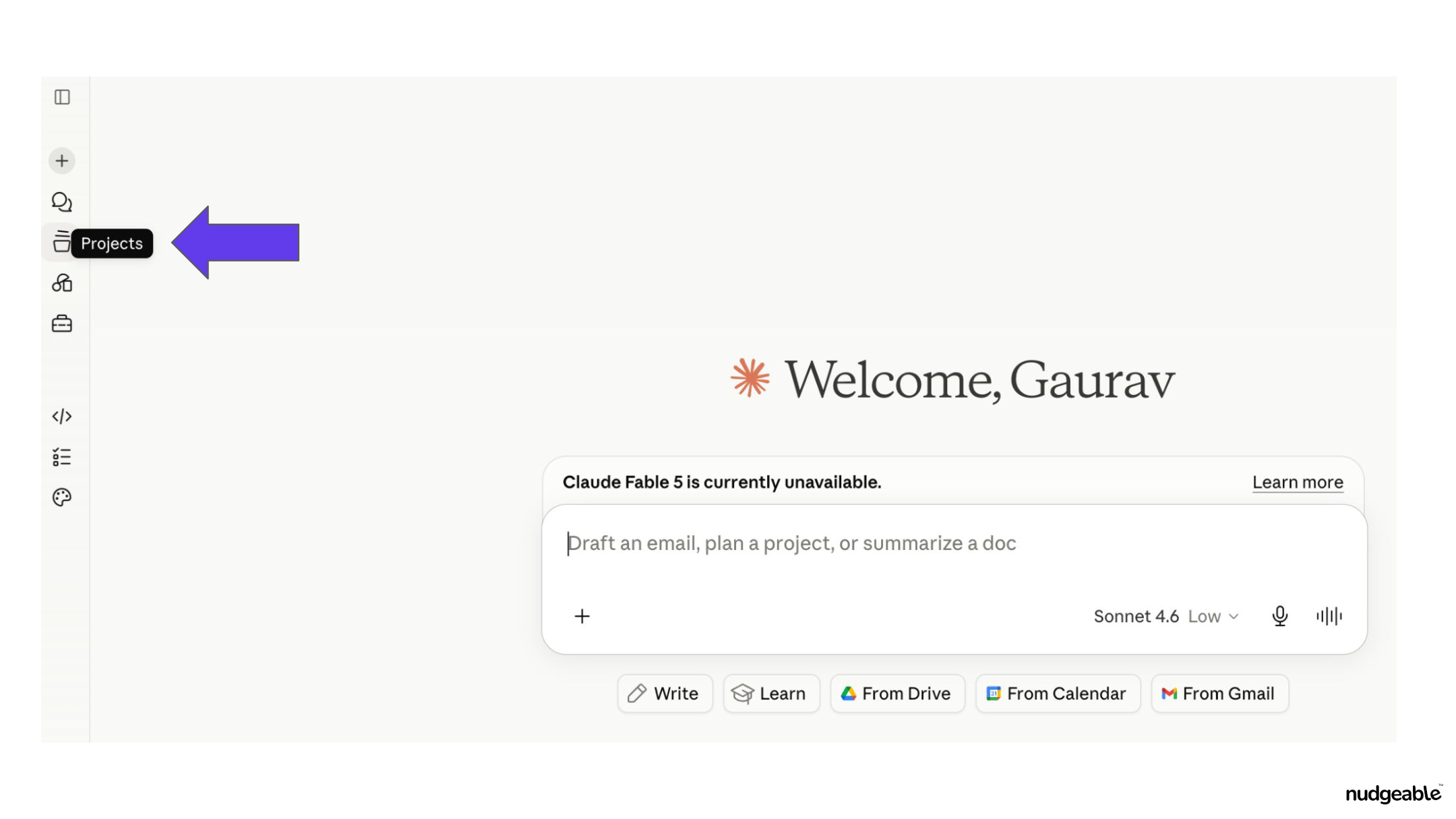
Step 1 — Navigating the Main Dashboard
ACTIVITY
Gemini
Optimize Work & Save Time with Projects
Create focused AI workspaces with files, context, and instructions in one place.
🎯 GOALS
✓
Keep long-running work organized
STEPS
1
Navigating the Main Dashboard
2
Creating a Project with a Description
3
Creating a Project with File Uploads
4
Exploring the Empty Project Workspace (Claude)
5
Exploring the Notebook-Style Workspace (Gemini)
6
Using the Split-Pane Configuration Panel
7
Adding Sources in ChatGPT Projects
8
Using the Copilot Project Workspace
9
Adding Sources in Gemini Notebook
10
Setting Project-Level Instructions
11
Managing Project Settings
12
Navigating the Project Directory
13
Enabling Notebook Memory
14
Confirming a File Is Attached (Claude)
15
Confirming a File Is Attached (ChatGPT)
16
Confirming a File Is Attached (Gemini Notebook LM)
17
Confirming a File Is Attached (Copilot)
18
Submitting a Document Query
19
Reviewing the AI Response with Citation
20
Reading a Concise Project Response
21
Querying with High Model Setting
22
Reading the Final Single-Word Response
Activity Video
AI Feature

 Gemini