Build a Factual Knowledge Base using NotebookLM
Intermediate · 15m
← Apply
1/18
Nudgie
— your AI coach
Active
AI
Preparing your session…
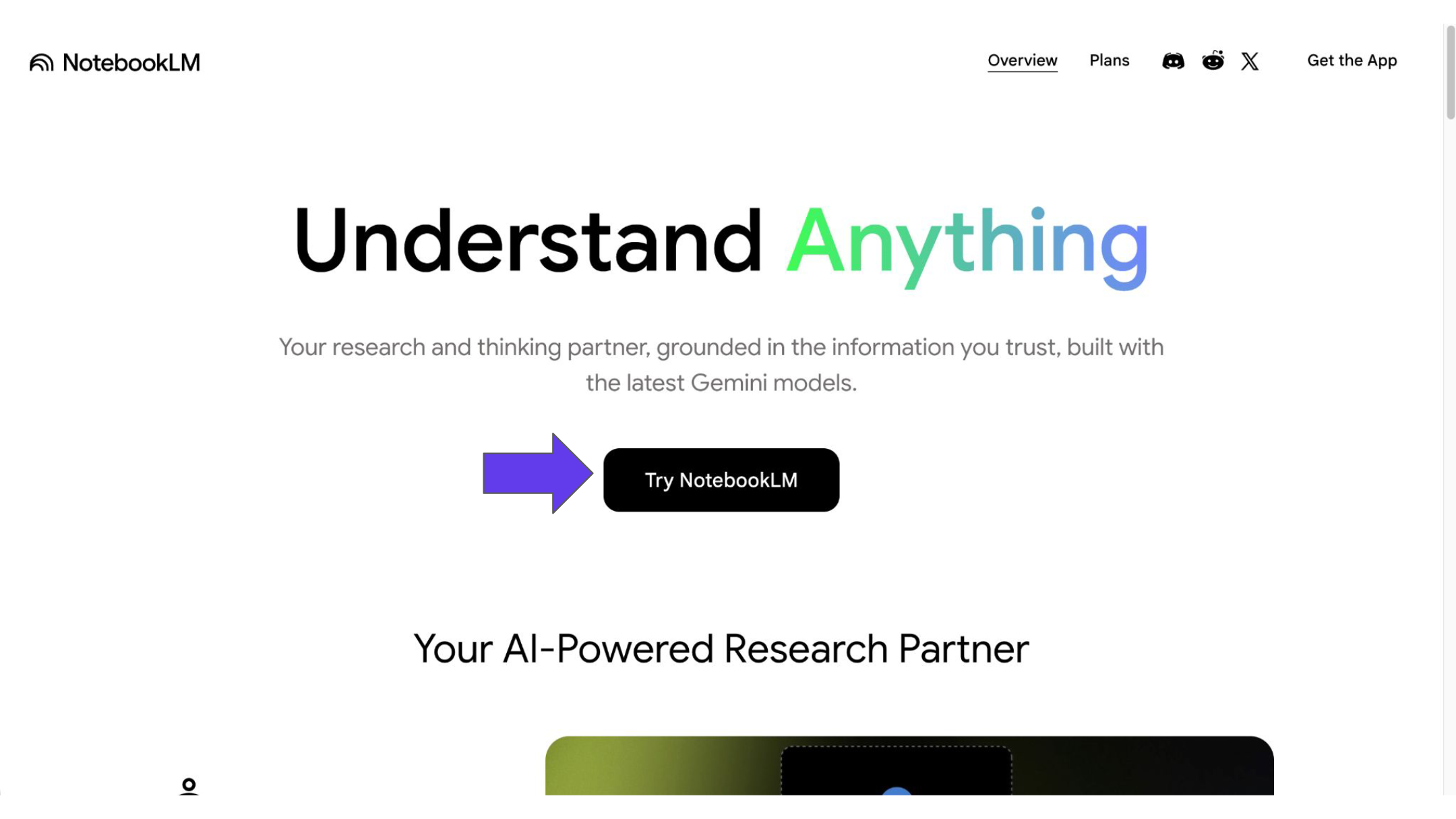
Step 1 — Landing on NotebookLM
ACTIVITY
Gemini
Build a Factual Knowledge Base using NotebookLM
A guide to organizing project files without AI hallucinations.
STEPS
1
Landing on NotebookLM
2
NotebookLM Dashboard
3
Empty Notebook Interface
4
Adding Sources via the Import Modal
5
Sources Loaded and Auto-Summary Generated
6
Querying Your Sources in Chat
7
Understanding the Closed-Domain Boundary
8
Exploring Studio Output Options
9
Customizing the Slide Deck Generation
10
Generated Deck Appears in Studio Panel
11
Reviewing the Generated Presentation
12
Checking Source Lineage via the Prompt Popup
13
Generating an Infographic from Sources
14
Watching the Video Overview
15
Connecting NotebookLM to Gemini
16
Selecting a Notebook to Add to Gemini
17
Notebook Attached as a Context Chip in Gemini
18
Managing Everything from the Gemini Dashboard
Activity Video
AI Feature

 Gemini